Setup Custom Bot
Create custom Discord bot with Cakey Bot - Custom branding, private bot hosting. Premium customization setup guide.
Already have a Custom Bot and looking for our intent verification guide? You can locate it here.
Overview
Custom Bot is an advanced version of Premium that allows you to completely rebrand Cakey Bot with your own Logos and Username! Custom Bot allows you to have:
- Custom Chat Bot AI API Key
- Custom Bot Profile Picture
- Custom Bot Username
- Custom Bot Bio
- Custom Bot Presence/Status (online/idle/dnd/invisible) and status message
- Better Performance
Purchasing Custom Bot
To purchase a Custom Bot simply follow these instructions:
- Navigate to our premium website page
- If you haven't done so already, you will need to login to Discord using any of the "Login to Purchase" buttons on the page.
- Go to the "Custom Bot" section and choose either Monthly or Yearly.
- Once you have done so, you can then click "Subscribe" and follow the on-screen instructions.
Setting Up Your Custom Bot
Once you have purchased the custom bot, you can follow these instructions:
- Navigate to the custom bot page of the web dashboard.
- You should be prompted via modal popup to start the setup process using our step-by-step setup wizard.
- If you get the wizard, follow the on screen instructions to complete the setup process.
- If you do NOT see the wizard, simply click the "Set Up New Bot" button to force open the setup wizard modal. (You can also optionally select the new bot in the dropdown menu and it'll prompt you for setup as well)
- Once you have everything setup, you can move on the inviting your custom bot with the instructions below.
Note: Do not skip any of the steps/instructions in the wizard. Failure to follow the steps may result in the bot not being setup/started correctly. If you have questions or issues join our support server.
Inviting Your Custom Bot
- Navigate to the premium page on the web dashboard.
- There should be a "Invite" button next to your custom bot subscription in the "Premium Subscriptions" list.
Custom Bots can currently be invited to up to 10 servers.
Note: While you can keep the main Cakey Bot & your Custom Bot in the same server. It is advised to kick the main Cakey Bot to prevent duplicate data (such as double audit logs, or users gaining extra leveling xp from both bots.)
Enabling 2FA For Moderation
If the Custom Bot isn't moderating a server properly, the server may have the Highest security setting enabled. This means that the owner of the Custom Bot will need to have 2FA (2-Factor Authentication) enabled for their Discord account.
The following actions will all fail if that person does not have 2FA (2-Factor Authentication) enabled for their Discord account.
- kick (/kick and automated actions)
- ban (/ban, /tempban and automated actions)
- unban (/unban and automated actions)
- delete message (/purge, automod, AR/CC)
- give role (self roles, verify role, welcome role, mute)
- remove role (self roles, mute)
- channel perms overrides (muted role, support tickets, automated actions)
- webhook creation (modlog, social feeds)
- full permission option (administrator)
In order to fix this issue, you will need to enable 2FA on the Discord account that created the custom bot. (see this tutorial)
If this isn't an option, you can also disable the 2FA requirement on the server, however, we do NOT recommend doing that.
If you have any issues in getting this sorted, do not hesitate to join our support server!
Additional Customization
Once you have setup and configured your bot you can setup additional customizations like custom API keys, custom embed colors and more. Simply login to the web dashboard and navigate to the "Custom Bot" page.
Custom Embed Colors
You can individually configure the color used for 14 different embed types:
- Good
- Warning
- Error
- Ok
- Boost
- AutoMod
- Trivia
- Gold
- Pokemon
- Twitch
- Debug
- Voice Transcribe
- Starboard
Presence & Status
You can configure your custom bot's presence (Online, Idle, Do Not Disturb, or Invisible) as well as a custom status message.
Custom bot status messages are limited to 128 characters.
Website URL
You can set a custom website URL for your bot.
Custom bot website URLs are limited to 128 characters, and must be a full, valid link (e.g. https://example.com) - just a domain name or something Discord wouldn't accept as a URL will be rejected when you save. If you don't type a scheme, https:// is added for you automatically.
Command Toggles
You can individually disable the following commands/features for your custom bot:
- Help command
- About command
- Leaderboard buttons
Cakey Personal Styling
Members with Cakey Personal get a lime highlight and an icon on leaderboards, including on your bot. If you would rather keep leaderboards unbranded, turn off Show Cakey Personal styling on leaderboards on the Custom Bot page of the dashboard. The Personal icons are generic (no Cakey logo).
Chat Bot AI Key
The custom Chat Bot AI API key is OpenAI-specific only. It must be a valid OpenAI-format API key, and the model used is restricted to one of the following:
- gpt-4
- gpt-4o
- gpt-4.1
- gpt-5.4
- gpt-5.4-mini
- gpt-5.4-nano
- gpt-5.5
- gpt-5.6-sol
- gpt-5.6-terra
- gpt-5.6-luna
Settings Presets
You can save up to 3 settings presets of your custom bot configuration. Once saved, presets can be:
- Re-applied to your custom bot
- Renamed
- Deleted
Preset names must be between 1 and 64 characters.
Leave Guild
Custom bots have a self-service "Leave Guild" button on the dashboard, allowing you to remove your custom bot from a server without needing to do so manually through Discord.
Custom Emote Replacement
Cakey Bot even allows you to customize and swap out every custom emote we use in the bot. In order to do this simply follow the steps listed below:
- Naivate to the Discord dev portal website where you first created your bot.
- Open/select your custom bot/application from the dashboard
- Click the "Emote" tab on the left sidebar
- Find the emote that you want to replace with your own. (Write down or take note of the EXACT name of this emote)
- Delete the emote
- Upload your new custom emote image (Use the EXACT name of the one you deleted previously)
- Restart your custom bot via Cakey Bot's custom bot dashboard
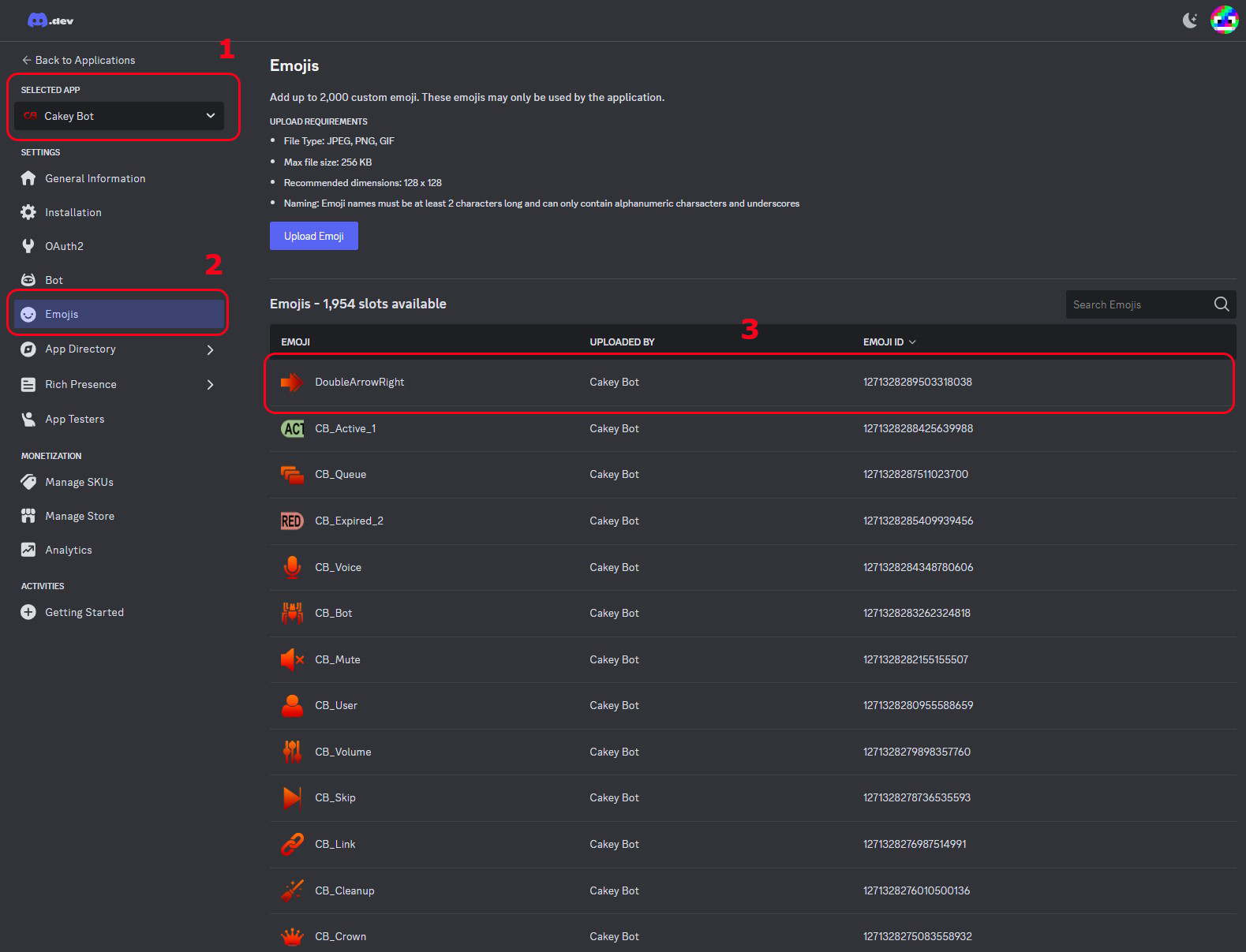
Note: Custom bots will syncronize their emotes on every startup. This means any random extra/invalid emotes will be deleted and any missing emotes will be replaced by the default. Be sure you use the EXACT name of the emotes when swapping them out.
Frequently Asked Questions
Q: Do I need to keep the main Cakey Bot? A: No, you should kick the main bot once the custom one is added. However, you can use the premium music bots next to your custom bot, although they will not receive custom branding.
Q: My bot appears to be offline. A: Please verify you enabled the correct intents when creating the bot on Discord's developer dashboard.
Q: How many servers can I invite the custom bot to? A: Up to 10.
Q: Will my settings persist from the main Cakey Bot or will I need to set them up again? A: Yes, The main bot and custom bot will share the same settings for a given server. No additional setup or copying is required.
Q: How do I change the profile picture, username or bio/about me? A: You can adjust these on the Discord Developer Dashboard where you created the custom bot originally.
Q: How do I setup custom status, emotes and other advanced customization for the custom bot? A: Check out the "Additional Customization" & "Custom Emote Replacement" sections above this FAQ for more information.
Q: I'm getting the "Private application cannot have a default authorization link" error. A: Go to the "Installation" section on the Discord developer dashboard and set your "Install Link" to "None". You can also optionally just make the bot public, however, making the bot public is not reccomended as anyone can invite the custom bot to their server and potentially abuse it.
Q: A channel dropdown on the dashboard is showing up empty for my custom bot. A: This usually clears up on its own after a moment - the dashboard talks to your custom bot's own Discord connection to list channels, and a temporary rate limit or connection hiccup can leave a dropdown empty until it recovers. If the main Cakey Bot also happens to still be in that server, the dashboard falls back to its view of the channels in the meantime; otherwise, just reload the page after a bit.