Web Dashboard
Configure Cakey Bot via web dashboard - Easy Discord bot setup without commands. Visual configuration interface guide.
Overview
Cakey Bot is a highly customizable utility and moderation bot. You can configure many features and settings in Cakey Bot using our web dashboard. You can access our web dashboard by visiting this link or by clicking "Manage Servers" in the navigation bar of our website.
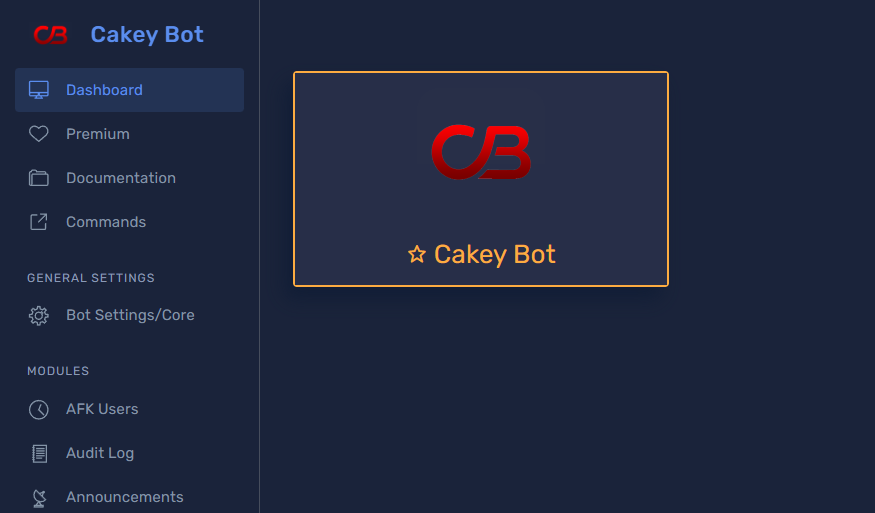
Once you have selected a server to manage, you will be taken to that server's home page. This page will show you general server stats and quick access to configuration modules such as Bot Settings (Language, Timezone, Staff Notes Role) and Music (default volume). After you are on this page, you can navigate to other modules to configure your server.
Login
You will need Manage Server or Administrator permission to manage servers.
You can also grant specific users or roles dashboard access without requiring Manage Server or Administrator. See Dashboard Access for details.
To access the Web Dashboard, server administrators must:
- Visit this link or click "Manage Servers" on the main Cakey Bot website
- Authenticate with their Discord account
- Select a server from the list of servers they have permission to manage
- If Cakey Bot is not in the selected server, they will be prompted to invite the bot first
Server Homepage
After selecting a server, administrators are taken to that server's homepage. This page displays:
- Server statistics (member count, channel count, etc.)
- Core bot settings (language, timezone, and staff notes role, configured on the Bot Settings page; default music volume is configured separately on the Music page)
- Quick access to all available configuration modules
This serves as the central hub from which administrators can navigate to other sections of the dashboard.
Manage/Customize
Once you have selected a server to manage, you will be taken to that server's homepage. The homepage will display basic statistics and general core settings for that server.
Once you have selected the server you want to modify you can change various features and core settings for it, including but not limited to:
- Suggestion Channels (new/approved/denied)
- Voice Transcription (disabled/manual/automatic modes — automatic requires Premium)
- GitHub Link Previewer (with ignored channels)
- Auto Quoter (with ignored channels)
- Code Block Reminder
- Per-command Roleplay (
/rp) toggles - Dashboard Access grants for specific users/roles
Getting Help While You Configure
Most feature pages on the dashboard have a "How does this work?" button on their title card. Clicking it slides the matching wiki article in from the right (or up as a drag-to-dismiss sheet on mobile) without leaving the page you're on, so you can check how a setting works without losing your place. It links through to the full wiki page too, if you want the complete article.
This is available on most feature pages - a handful of pages (like the server homepage and read-only log panels) don't have a matching wiki article and won't show the button.
Viewing Server Activity & Logs
The dashboard provides several read-only panels that display important information about your server:
Moderation Logs
The logs panel shows a complete history of moderation actions taken in your server, including:
- Warnings issued
- Timeouts applied
- Bans and kicks
- Message deletions
- Other moderation activities
This provides administrators with a comprehensive audit trail of all moderation actions.
User Warnings
This panel displays all current warnings that have been issued to users in your server, including:
- The user who received the warning
- The moderator who issued the warning
- The reason for the warning
- The date and time the warning was issued
Temporary Actions
This panel displays temporary data/actions such as temporary roles and temporary bans.
Best Practices
When using the Web Dashboard, consider these recommended practices:
Regular Review: Periodically review your configuration settings to ensure they still align with your server's needs.
Permission Management: Only give
Manage ServerorAdministratorpermissions to trusted individuals, as they will gain full access to the dashboard. If you only need to give someone dashboard access without granting them broader Discord permissions, use Dashboard Access instead.Feature Integration: When enabling new features, consider how they will interact with existing ones. For example, economy rewards might affect the leveling system.
Testing Changes: After making significant changes, test the functionality in your server to ensure it behaves as expected.
Backup Settings: Before making major configuration changes, consider documenting your current settings as a backup. The dashboard does not have any built-in rollback or backup systems.