Achievements
Discord achievement system with Cakey Bot - Custom badges, milestone rewards, progress tracking. Gamification setup guide.
Overview
The Achievement System within our Discord bot empowers server owners to create diverse and engaging milestones for users to unlock based on their activities and contributions within the community. These achievements serve as markers of accomplishment, encouraging participation and interaction across the server.
How it Works
Achievement Creation: Server owners can create and customize various achievements with specific requirements tailored to diverse user engagements. These achievements encompass a wide range of activities and events within the server.
User Engagement Tracking: The bot continuously tracks user activities and progress towards achieving the set criteria for each milestone. Progression is monitored for various actions like time spent in voice channels, message count, boosting the server, participation in events, reactions added, thread creation and involvement, and birthday settings.
Unlock Alerts: Once a user fulfills the prerequisites for unlocking an achievement, a visually appealing image alert is automatically generated and sent to a specified channel, showcasing the user's accomplishment and encouraging further engagement within the server.
Create/Manage Achievements
Create Achievements
To create an achievement login to our web dashboard then follow these steps:
- Open the "Achievements" page
- Click the blue "Create New Acheivement" button
- Make any desired configurations on the pop-up modal
- Click "Create Achievement" button
You can create up to 100 achievements per server. Premium servers can create up to 200, and custom bots have no limit. If a server ends up over its limit (for example, when Premium expires), all of its achievements are disabled until enough are deleted to fit again.
The achievement fields have the following limits:
| Field | Limit |
|---|---|
| Name | 300 characters |
| Description | 140 characters |
| Icon Name | 64 characters |
| Progression Target (limit) | 1,000,000 |
| XP Add / XP Remove Reward | 0 - 1,000,000 |
| Eco Money Add / Eco Money Remove Reward | 0 - 1,000,000 |
Clone Achievements
Need a new achievement that's similar to one you already have? Instead of starting from scratch you can clone an existing achievement:
- Open the "Achievements" page
- Find the achievement you want to clone
- Click the clone button on the achievement
- This will open the create achievement modal pre-filled with the cloned achievement's settings - make any desired changes and click "Create Achievement"
Edit Achievements
To modify an achievement follow these steps:
- Open the "Achievements" page
- Find the achievement you want to modify
- Click the blue pen button on the achievement
- Make any desired changes on the pop-up modal & click save
Enable/Disable Achievements
Achievements can be temporarily disabled without deleting them. While disabled, users will not be able to unlock or progress towards the achievement. To toggle an achievement:
- Open the "Achievements" page
- Find the achievement you want to enable/disable
- Click the enable/disable toggle on the achievement
Delete Achievements
To delete an achievement follow these steps:
- Open the "Achievements" page
- Find the achievement you want to delete
- Click the red trash can button on the achievement
- Confirm the deletion in the pop-up modal (it names the achievement and its ID, so you can be sure you picked the right one)
Overview Toolbar
The toolbar above the achievement cards lets you search, filter by state or trigger, sort, and choose how many cards to show per page. These choices are remembered per server, so they survive creating or editing an achievement. The right of the toolbar shows how many achievements you have in total and how many match the current search and filter.
Each card also shows the roles the achievement adds (+) and removes (-) when unlocked, and a member count of how many people currently hold it. Click the count to see who they are, or use /achievements owners in Discord.
Folders
Folders keep a long list of achievements manageable. The folder bar above the cards lists your folders next to "All achievements" and "No folder"; click one to show only what is in it.
- Create a folder: click "New folder" and give it a name of up to 50 characters. A server can have up to 50 folders, each with its own name.
- Put achievements in a folder: pick the folder in the create, edit or clone window, or select several achievements and use "Move to folder".
- Rename, reorder or delete a folder: select the folder and use the buttons beside the folder bar. Deleting a folder keeps its achievements, which end up in no folder.
An achievement sits in one folder at most. Folders only organise the dashboard; they change nothing about how an achievement unlocks or is shown in Discord.
Custom Order
Set the sort to "Custom order" to arrange achievements yourself. Drag a card, or use the arrows on it, to move it. The order is saved as you go.
Customization Options
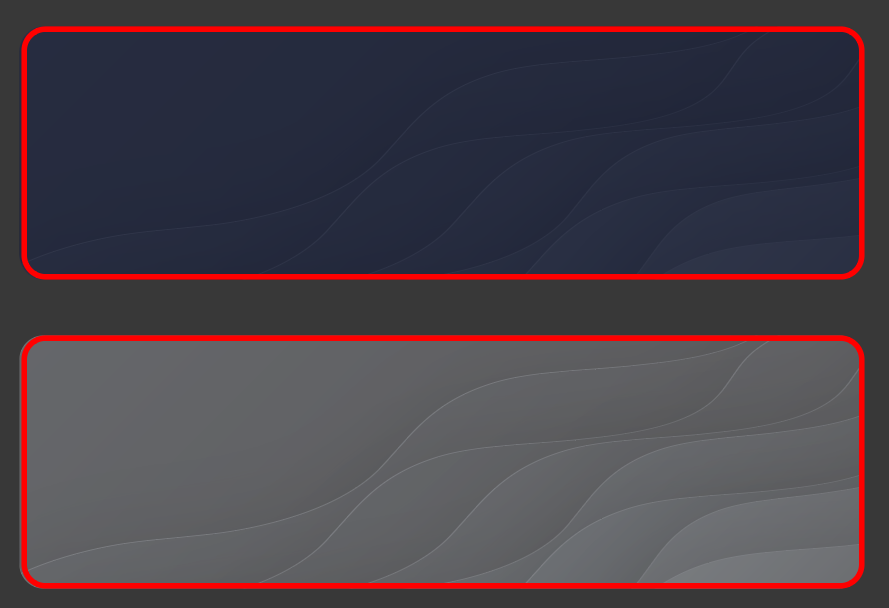
Background Banners
Currently there is a "Dark Mode" background (shown top) and a "Light Mode" background (shown bottom).
Badge Shapes & Colors
There are several different badge combinations that you can select for your achievement unlock banners. You can chose between 5 shapes including:
- Hexagon
- Pentagon
- Circle
- Diamond
- Square

You can also chose between 9 different colors:
- Red
- Brown
- Blue
- Purple
- Grey
- Green
- Pink
- Teal
- Yellow

Turn on Custom badge color to pick any color instead. Very dark and very light colors are adjusted slightly so the badge and its icon stay visible.
Icons
You can pick any Font Awesome icon for your badges, including brand icons such as Discord or Twitch. You can select any RGB color to be applied to the icon as well.
Icon Style draws the icon in another Font Awesome style, such as Regular, Light, Duotone or Sharp, or one of the Pro+ packs such as Jelly, Chisel or Whiteboard. The packs only have some of the icons, so picking one limits the icon list to the icons it has, and styles that don't have the icon you picked are faded. Brand icons only come in their own style.
Showing Off Achievements
Showcase
/achievements showcase draws every badge a member has unlocked as a single image, laid out as a grid under their name. Badges are grouped by tier group with the highest tier first, and disabled achievements are left out.
Rank cards show official Cakey Bot badges only. Achievement badges are not shown there.
Rewards
When a user unlocks an achievement, Cakey Bot can automatically reward them with any combination of the following:
- XP Add / XP Remove - Adds or removes leveling XP from the user.
- Eco Money Add / Eco Money Remove - Adds or removes economy money from the user.
- Add Roles - Grants the selected Discord role(s) to the user.
- Remove Roles - Removes the selected Discord role(s) from the user.
Ignored Channels
You can select specific channels to be excluded from counting towards achievement progress. For example, if you exclude a channel from message-count tracking, messages sent in that channel won't count towards a "Send X messages" achievement.
Ignored Roles
Members holding any of the selected roles don't accumulate achievement progress at all. Useful for excluding bots, muted members or staff accounts from progression achievements.
Unlock Messages
By default every unlock announcement uses the server wide achievement message. An individual achievement can override that with a message of its own, which is used only when that achievement unlocks.
Types of Achievements
Progression-Based Achievements
Currently Cakey Bot supports several progression-based events for awarding achievements. These events include:
- X minutes spent in voice channels.
- Send X messages.
- Boosted the server.
- Joined X giveaways.
- Add X reactions.
- Create X threads.
- Joined X threads.
- Set their birthday.
- Acquire an X day streak.
- Reach level X.
- Reach an economy balance of X.
- Obtain a specific role.
- Send X gifs.
- Send X stickers.
- Be muted X times.
- Stream for X minutes in voice.
- Wear the server tag.
- Count correctly X times in the counting game.
- CUSTOM / MANUAL
Note: You can not swap progress based achievements into CUSTOM / MANUAL achievements after they have been created. (or vice-versa)
How Progress Is Counted
Achievements keep their own counters, separate from leveling. Counting starts the moment the server sets an achievement channel, and it is not reset when an achievement is created, so a member who was already active can unlock a new achievement straight away.
The counters are not the same numbers as the leveling leaderboard:
- Messages counts every message a member sends outside the ignored channels and roles. The leveling leaderboard only counts messages that earned XP, which is at most one per text cooldown, so a member who chats in bursts has far more achievement messages than leveling messages.
- Voice minutes counts every minute spent in a voice channel. Leveling skips muted, deafened and solo time and has its own cooldown, so there the leveling number is usually the higher one.
The server's leaderboard page on the website has an Achievements tab that shows the top members for each of these counters, so everyone can see how far they are from the next achievement.
Scoped Achievements
Some triggers can be pointed at a single channel or a single role instead of counting server wide.
- Per channel: message, reaction, thread, voice and streaming triggers can be limited to one channel, so "Send 100 messages in #introductions" counts separately from messages sent anywhere else.
- Per role: the "Obtain a specific role" trigger targets the role being watched for.
Progress is tracked separately for each target, so the same trigger can back several achievements at once without them interfering.
Tiers
Achievements can be grouped into a tier group with a tier number, letting you build a ladder such as Chatter I, Chatter II and Chatter III. Tiers decide the order badges are shown in on the showcase, highest tier first.
Server Tag Removal
A "Wear the server tag" achievement can be set to be taken back when the tag comes off. Turn on "Take it back when the tag comes off" in the create or edit window.
A member who stops wearing the tag then loses the achievement, along with the XP, currency and roles it gave them. Their XP and balance never go below zero. Putting the tag back on unlocks the achievement again.
Unlocks and Announcements
An achievement unlocks as soon as a member's progress reaches or passes its limit. A single change can skip past several limits at once (a large XP grant, a Double XP Day, a big economy payout), and every limit the member has reached unlocks, not just the highest one.


Note: The announcement is only posted when a member crosses the limit. If an achievement is created or edited after a member is already past its limit, they still unlock it and receive its rewards the next time they are active, but nothing is posted. This keeps a new achievement on a busy server from posting once for every member who was already there.
To test a new achievement's announcement, use a limit above your current progress or a member who has none yet.
Related Commands
Grant or revoke a custom achievement.
/achievements custom <action> <achievement> [user]Show off the achievement badges a member has unlocked.
/achievements showcase [user]See who has unlocked the most achievements in this server.
/achievements leaderboardSee which members have unlocked a specific achievement.
/achievements owners <achievement>- /setup force-check-boosts Manage Server
Force check user boosts for achievements.
/setup force-check-boosts - /setup clear-achievement-data Manage Server
Remove ALL achievement data for the server.
/setup clear-achievement-data <confirm>