Starboard
Create Discord starboard with Cakey Bot - Pin popular messages automatically, showcase best content. Community feature guide.
Overview
The Starboard feature in Cakey Bot is a functionality designed for Discord servers that allows users to highlight and showcase notable or popular messages within a dedicated channel known as the starboard. It provides a way to recognize and preserve memorable messages that receive a certain level of appreciation from the community.
The Starboard feature in Cakey Bot can be a fun and engaging way to recognize and highlight valuable contributions or entertaining messages within a Discord community. By allowing users to easily star messages and providing a dedicated channel to showcase them, it encourages interaction and appreciation among server members.
When a message is posted to a starboard, the post shows up to 4 of the message's images. Reactions from bots are never counted.
Multiple Starboards
A server can have more than one starboard. Free servers can have 1 starboard, and Server Premium or a Custom Bot raises the limit to 5. Each starboard has its own name, channel, emote, threshold, ignored channels and message age limit.
- An emote can only be used by one starboard in the server, so the dashboard refuses an emote that another board already uses.
- Two starboards can post to the same channel, and each keeps its own posts.
- Only one starboard using the "Any reaction" counting mode is allowed per channel.
Deleting a starboard does not remove the messages it already posted. Changes made on the dashboard apply to the bot right away.
How to Setup Starboard
- Head over to Cakey Bot's Dashboard and select your server.
- From the left sidebar, pick "Starboard".
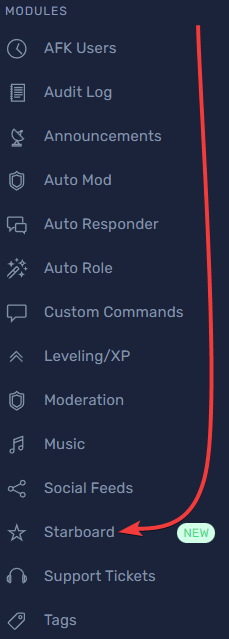
- Click "Add starboard", then turn on "Starboard Enabled" and save.
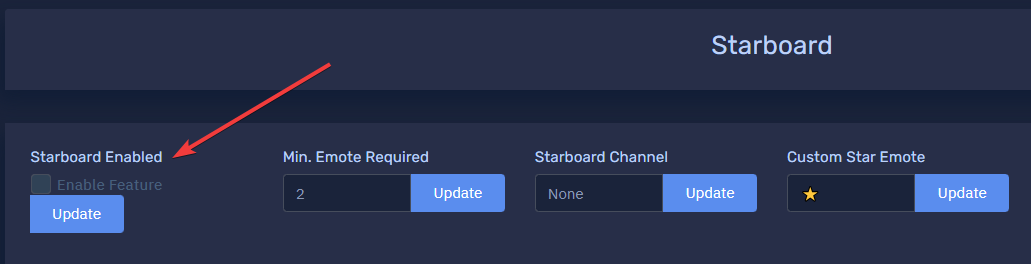
Done! The starboard is now enabled in your server. Remember to set a starboard channel for messages to appear when they are starred. Turning "Starboard Enabled" off stops that board from posting but keeps its settings.
Settings
Every setting below belongs to a single starboard, so each board in your server can be set up differently.
Starboard Name
The name is only shown on the dashboard and when forcing a message to a starboard. It helps you tell your boards apart.
Starboard Channel
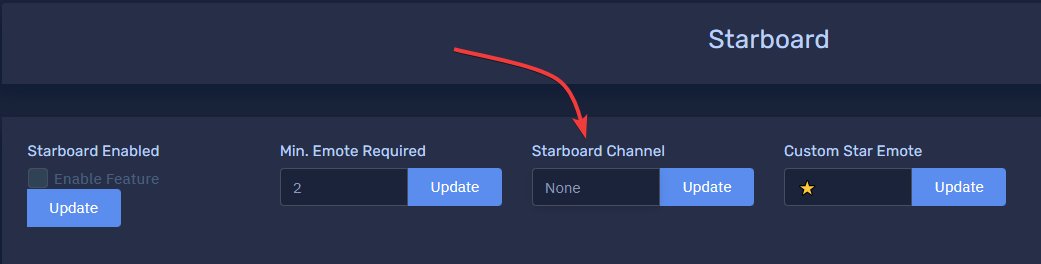
The starboard channel is where the starred messages will show up. Here's a guide on how to set it up:
- Head over to Cakey Bot's Dashboard and select your server.
- From the left sidebar, pick "Starboard".
- After that, under the "Starboard Channel" section, select the channel where you would like your starred messages to appear.
Counting Mode
The "Counting mode" setting decides which reactions count toward the threshold.
- Specific emote: only reactions with the board's custom star emote count.
- Any reaction: each member counts once, whichever emotes they react with.
Min. Emote Required
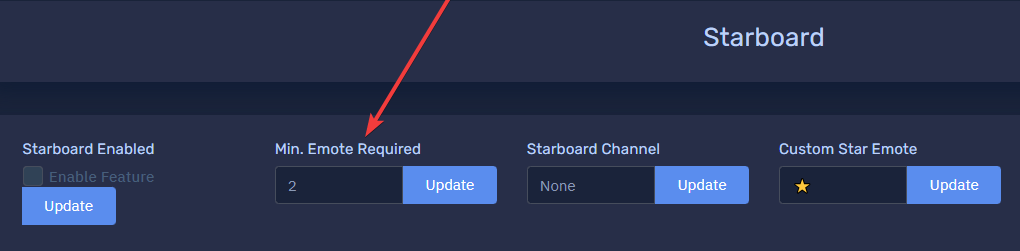
Min. Emote Required means how many reactions the message needs to have until it gets put on the starboard. Defaults to 2 reactions, and the dashboard enforces a minimum of 1. In the "Any reaction" counting mode this field is called "Min. members reacting", and each member counts once however many emotes they add. Here's how to change it:
- Head over to Cakey Bot's Dashboard and select your server.
- From the left sidebar, pick "Starboard".
- After that, under the "Min. Emote Required" section, enter the amount of reactions a message needs to get to show up on the starboard.
Channel Filter
The "Channel filter" setting decides how the channel list works.
- Ignore these channels: messages in the channels listed under "Ignored Channels" are never posted.
- Only these channels: only messages in the channels listed under "Watched channels" are posted. Leaving this list empty watches every channel.
In both modes, picking a category also covers the channels inside it, and threads follow the channel they belong to.
Here's how to set it up:
- Head over to Cakey Bot's Dashboard and select your server.
- From the left sidebar, pick "Starboard".
- After that, choose a "Channel filter" mode, then select the channels or categories in the list below it.
Max Message Age (Days)
You can set a maximum message age, in days. Messages older than this will be skipped and will not be added to the starboard even if they receive enough reactions. Setting it to 0 means there is no limit. Here's how to set it up:
- Head over to Cakey Bot's Dashboard and select your server.
- From the left sidebar, pick "Starboard".
- After that, under the "Max Message Age (Days)" section, enter the maximum age (in days) a message can be before it's no longer eligible for the starboard.
Disable Self-Starring
When this is on, the author's own reaction on their message does not count toward the threshold.
In the "Specific emote" counting mode, Cakey Bot also removes the author's star reaction from their own message rather than simply ignoring it.
Here's how to set it up:
- Head over to Cakey Bot's Dashboard and select your server.
- From the left sidebar, pick "Starboard".
- After that, toggle the "Disable Self-Starring" setting on or off depending on whether you want users to be able to star their own messages.
Custom Star Emote
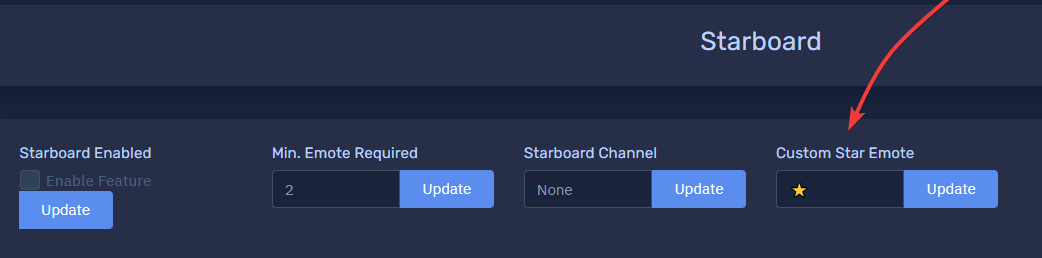
You can set a custom star emote so that members do not have to react with a ⭐, but a different emote instead. It can be a standard Unicode emoji or one of your server's own custom emotes. This emote is used in the "Specific emote" counting mode, and each emote can only belong to one starboard.
Here's how to do that:
- Head over to Cakey Bot's Dashboard and select your server.
- From the left sidebar, pick "Starboard".
- After that, click the "Custom Star Emote" field to open the picker, then switch between the "Unicode" and "Server Emotes" tabs to pick either a standard emoji or one of your server's custom emotes.
If a custom emote is later deleted from your server (or the bot loses access to it), Cakey Bot automatically falls back to the default ⭐ when posting new starred messages, rather than showing a broken emote.
Post Marker Emote
In the "Any reaction" counting mode, each post on the board starts with a marker emote instead of the board emote. It defaults to ✨ when left empty, and it can be a standard Unicode emoji or one of your server's custom emotes. The dashboard refuses a marker that another "Specific emote" board posting to the same channel uses as its emote, since the bot could not tell their posts apart.
Here's how to set it up:
- Head over to Cakey Bot's Dashboard and select your server.
- From the left sidebar, pick "Starboard".
- After that, set "Counting mode" to "Any reaction" and pick an emote in the "Post marker emote" field.
Post Color
Each board can give its posts its own embed color. When "Use a custom post color" is off, posts use the default starboard color. Here's how to set it up:
- Head over to Cakey Bot's Dashboard and select your server.
- From the left sidebar, pick "Starboard".
- After that, turn on "Use a custom post color" and pick a color or enter a hex code.
Force to Starboard
Members with the Manage Messages permission can right click a message and pick Apps, then "Force to Starboard" to post it without waiting for reactions. If the server has more than one active starboard, Cakey Bot asks which board to post it to. This does not work on messages inside a starboard channel.